Nederlands
  English
  Deutsch


Roundcube webmail
On all our shared mail solutions, we offer Roundcube as a webmail application. You can access webmail via https://webmail.3wmedia.nl
In this manual, we discuss the following settings:
- Set identity
- Add folders
- Archiving
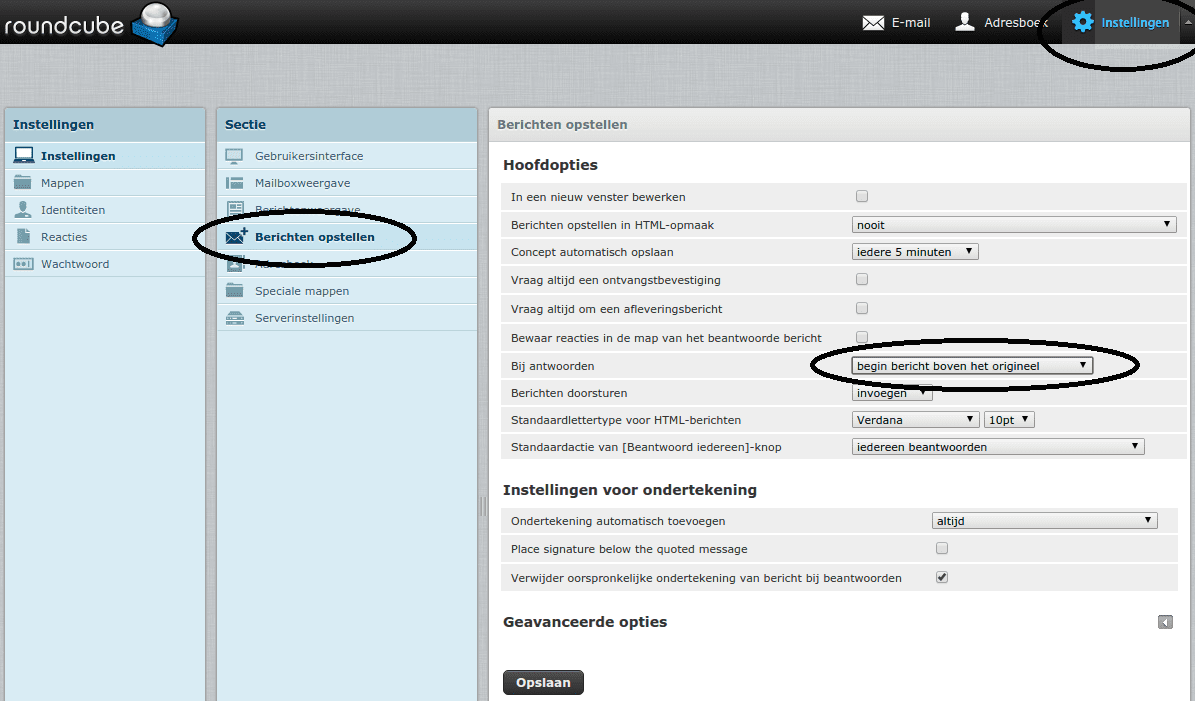
- Reply above the original message
Set identity: signature and name
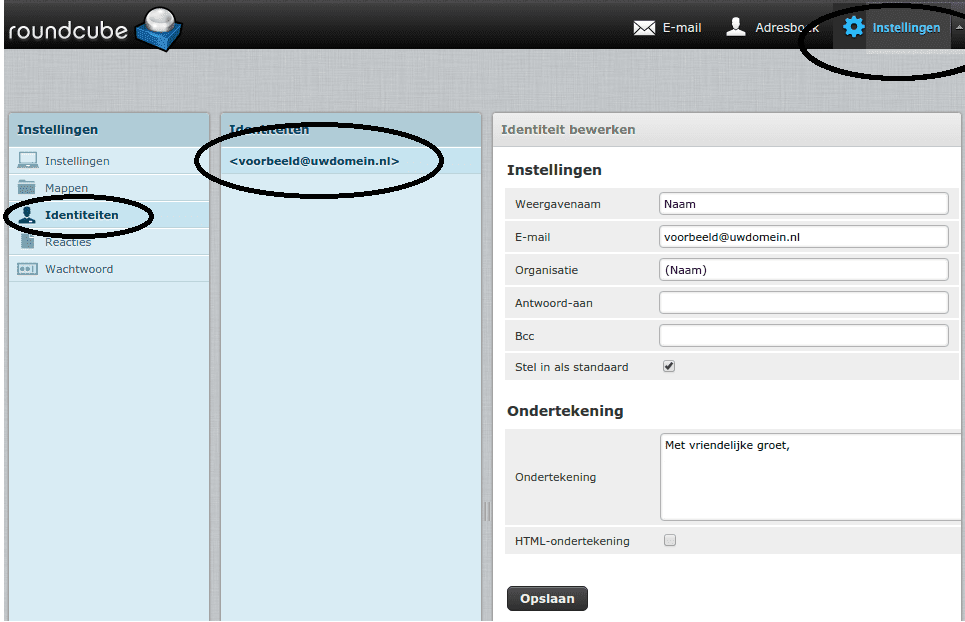
By setting an identity, you can have your own name appear as the sender, and add a signature below your messages.
Click on ‘Settings’ at the top right, then on ‘Identities’, and then click your current email address.
When you are satisfied, click ‘Save’.
Add folders
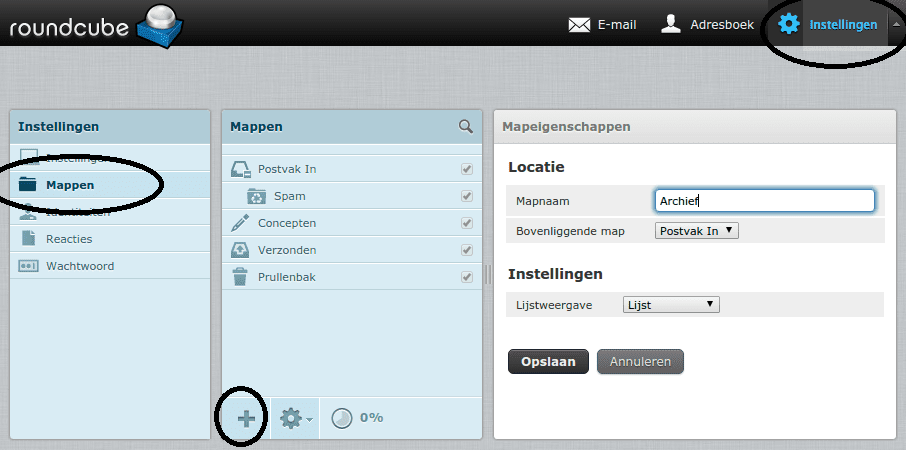
To add folders, click on ‘Settings’, then on ‘Folders’, and then on the plus sign at the bottom.
Choose a name, and optionally a folder in which the new folder should be placed. When you are done, click ‘Save’.
Archiving
To use the archive function of Roundcube, first make sure you create a folder that serves as an archive. When you have that, click on ‘Settings’ at the top right, then on ‘Special folders’. Here, for the ‘Archive’ option, choose the folder you just created. Click Save when you are done.
A new button called ‘Archive’ will now appear in Roundcube. This allows you to easily move selected messages to your archive.

Replying above the original message
By default in Roundcube, when you reply to a message, the original message appears at the top. To prevent this, and thus ensure that the original message appears at the bottom, do the following:
Click on ‘Settings’ at the top right, then on ‘Composing messages’. Here, make sure that ‘When replying’ is set to ‘start message above the original’.
Then click ‘Save’